Beat the Heat
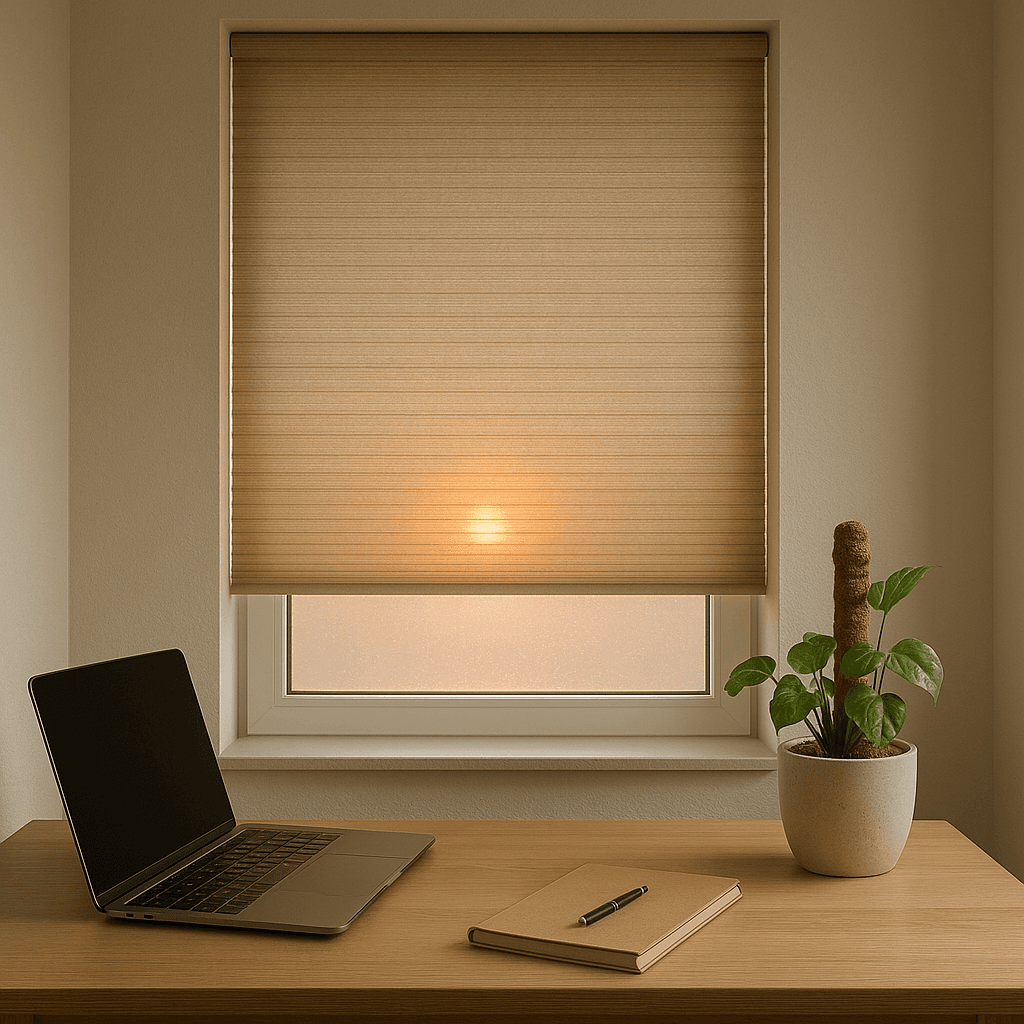
Even if you don't have an air conditioner, you can still keep cool on hot summer days by automatically closing your blinds. With the weather integration in Controller for HomeKit Workflows, you can check whether the forecasted daily high temperature will exceed a certain threshold. This guide shows you how it works.
Start Event
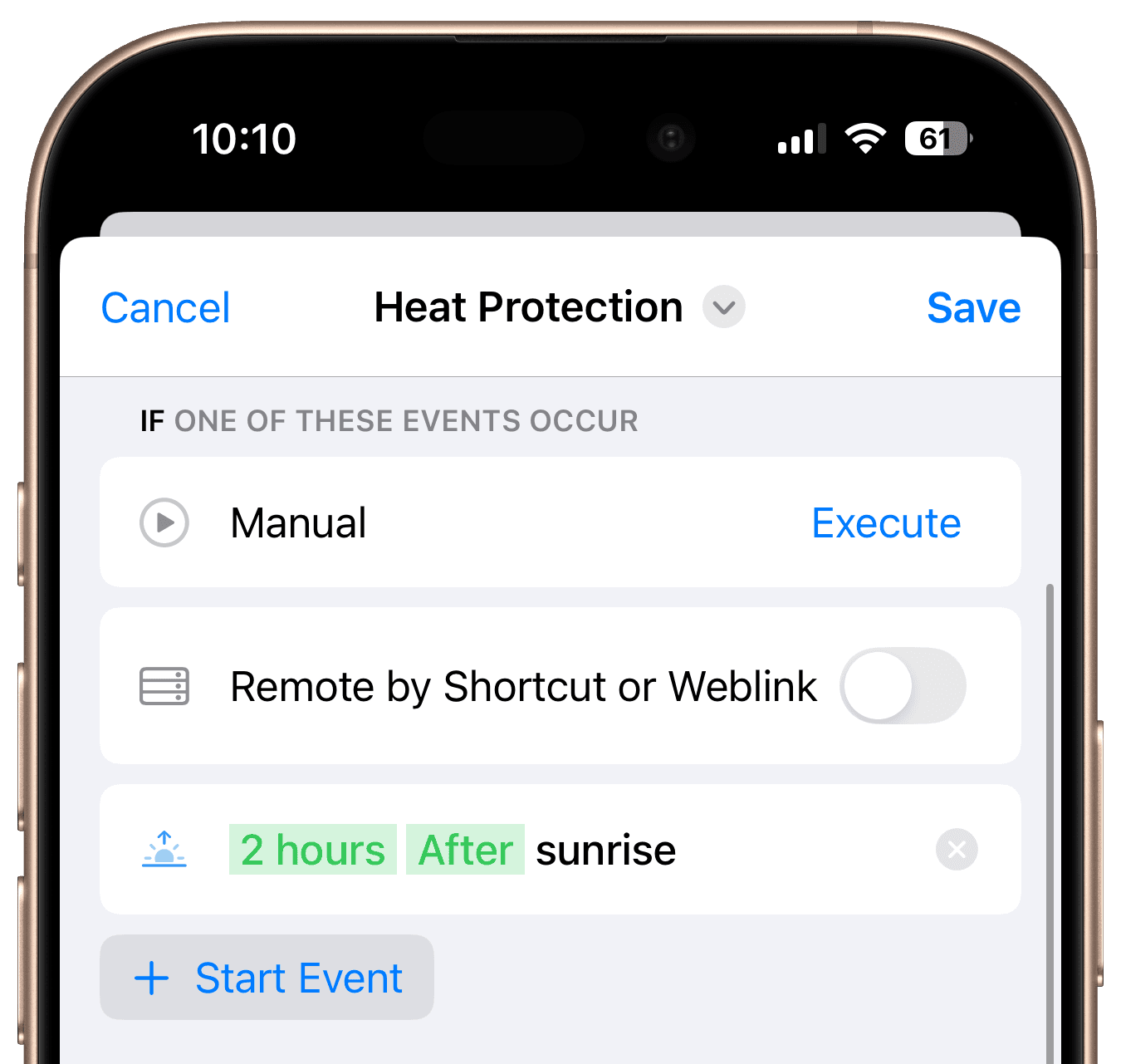
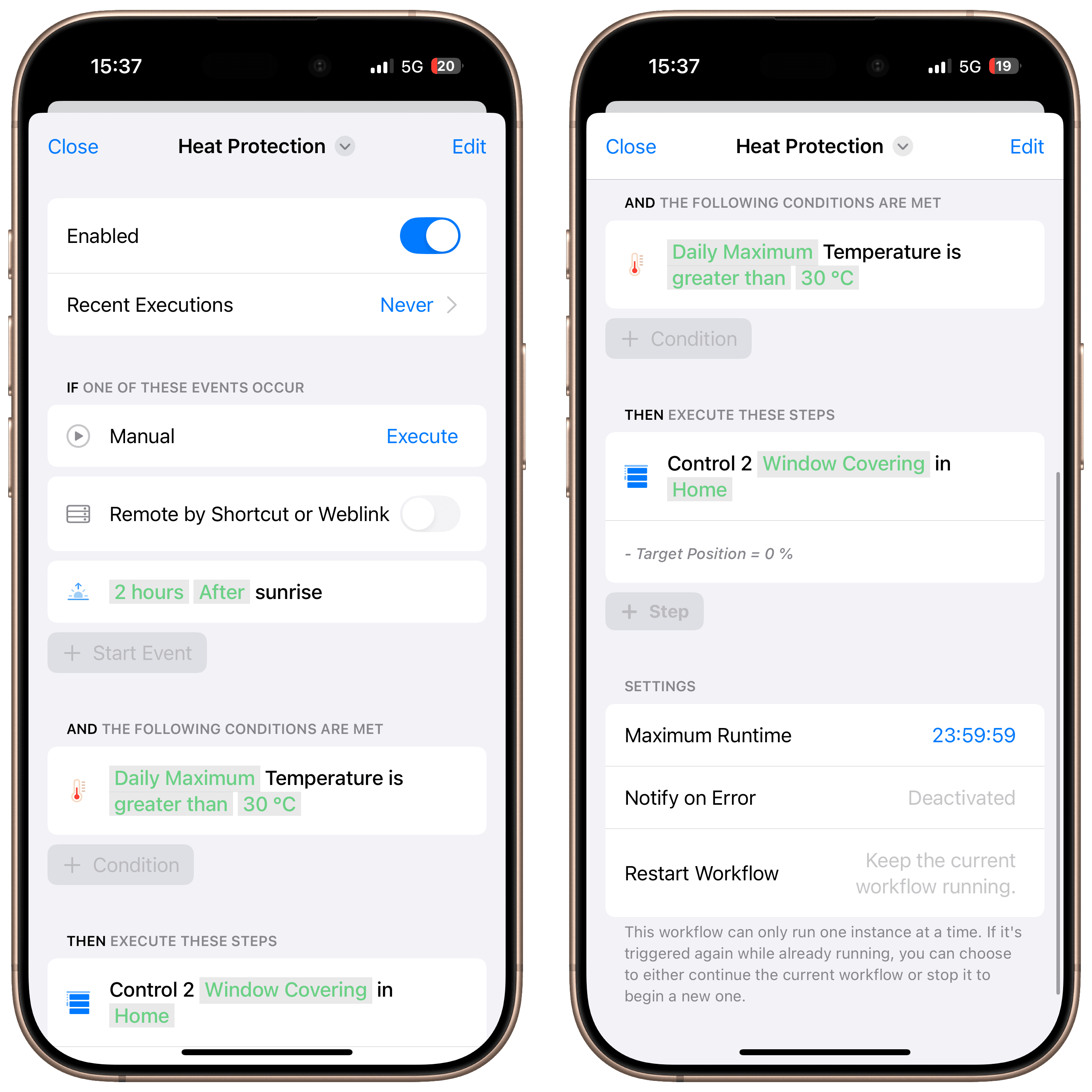
Since we still want to let some light into our home in the morning while temperatures are still low, we chose to use a start event set for 2 hours after sunrise.
Conditions
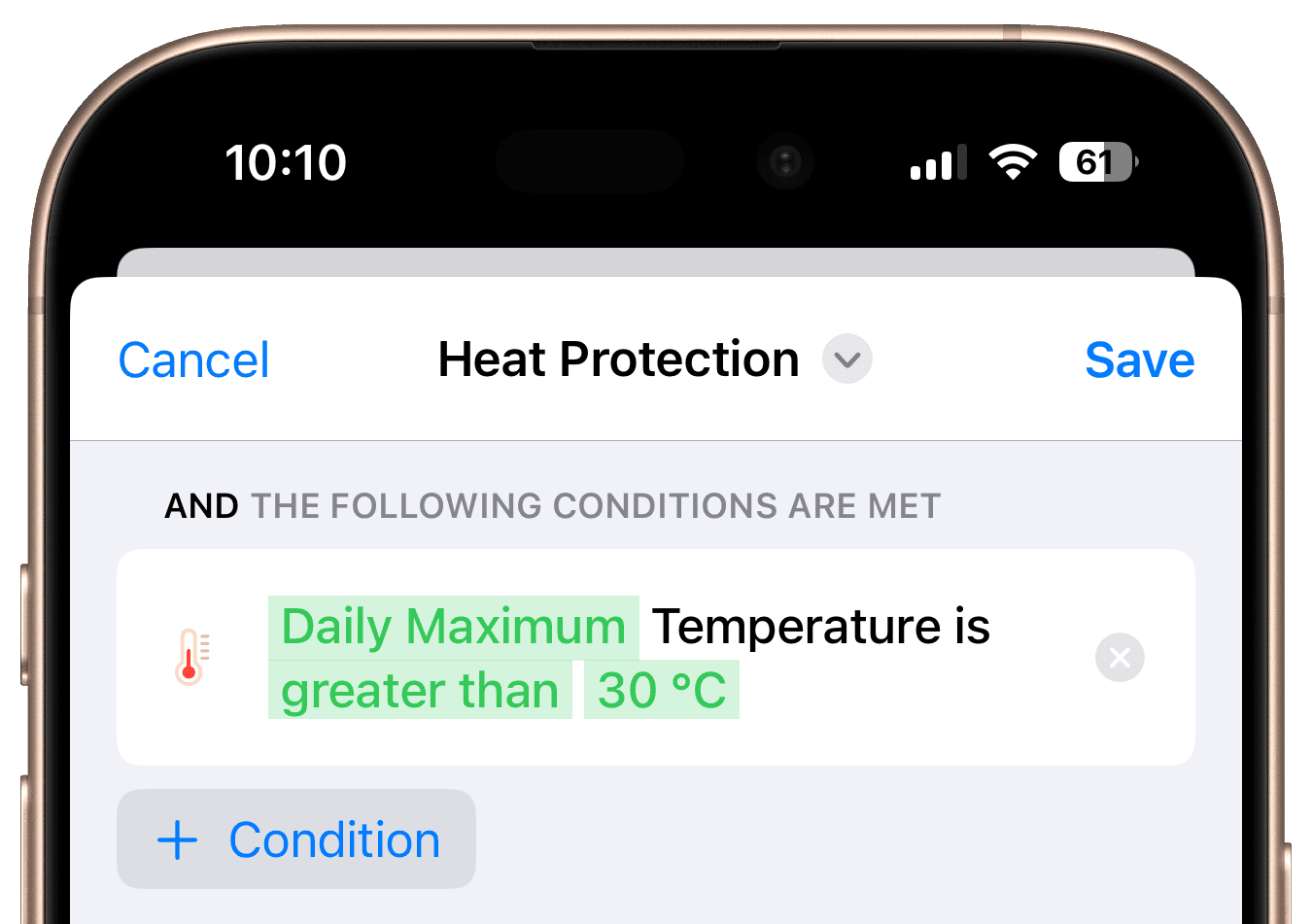
Add a "Temperature" Condition
Add a condition for "Temperature" and select "Daily Maximum" and "greater than". We have chosen 30°C (around 86°F) as our threshold, but you can adjust this value to your preference.
Steps
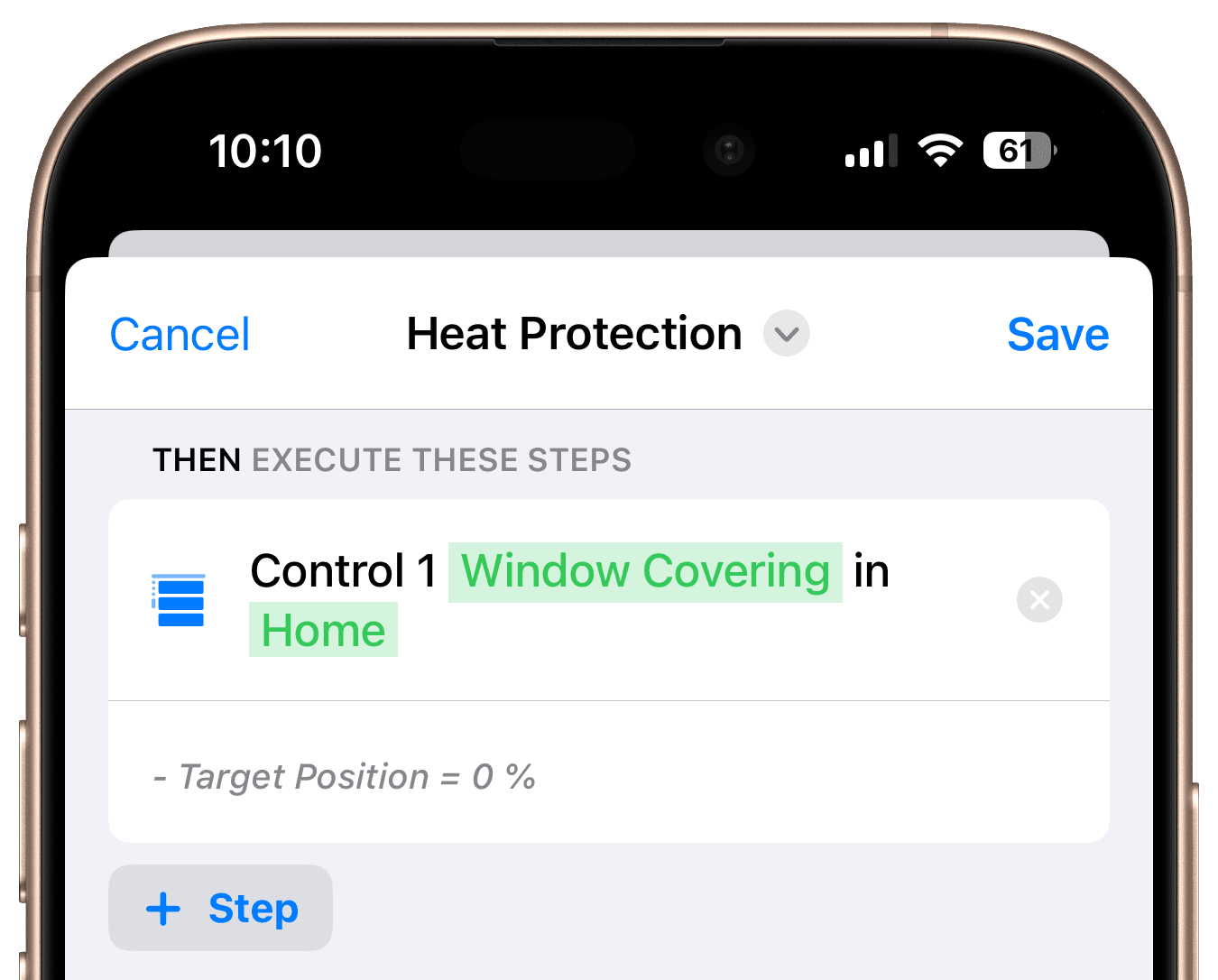
Add a "Control Accessories" Step
Instead of controlling a single device, use the "Control Accessory Types" step and select the entire home with "Window Covering" as the service type. Then set target position to 0% to close all blinds. If you only want specific rooms, choose those rooms instead of the whole home.
Final Overview
Every day, two hours after sunrise, the workflow checks whether the daily high will exceed 30°C / 86°F. If it does, all blinds are automatically closed. Even if you add more blinds in the future, they'll be included automatically, since the workflow controls accessory types rather than individual devices.

Get Inspired
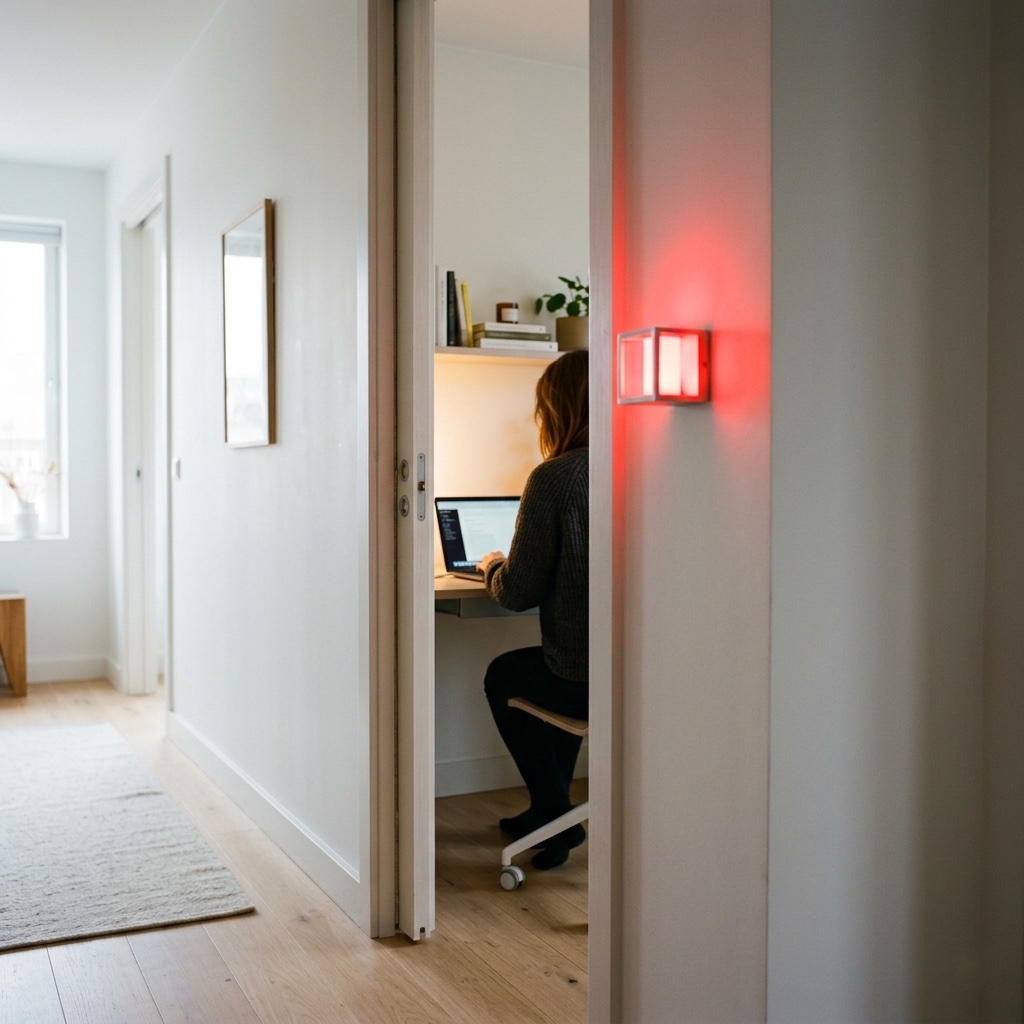
Meeting Light
Uses light color to show whether you’re in a meeting.
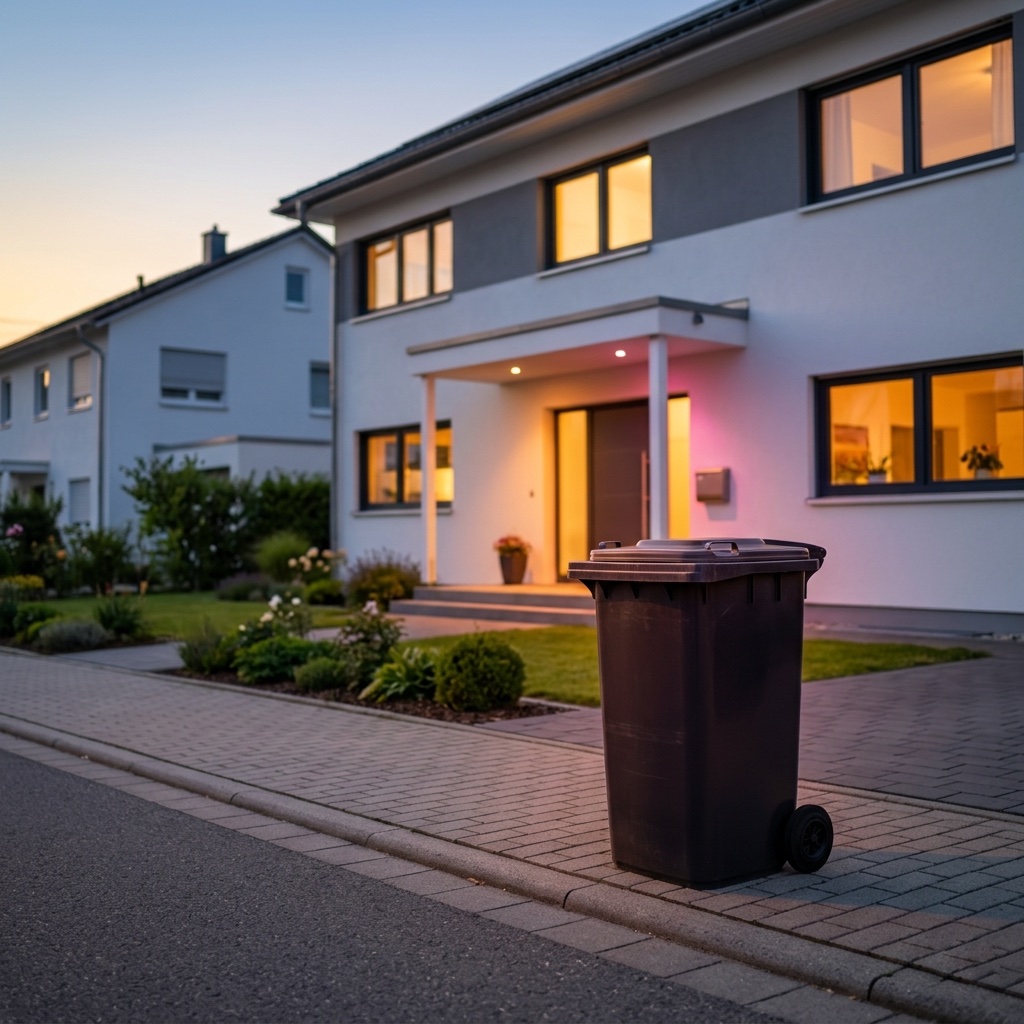
Waste Calendar
Never forget the bin again – with colored light and speech.

Carbon Dioxide Alert
Get notified when CO₂ levels exceed 1000 ppm.

Location-Based Workflow
Automate your routines based on where you are.
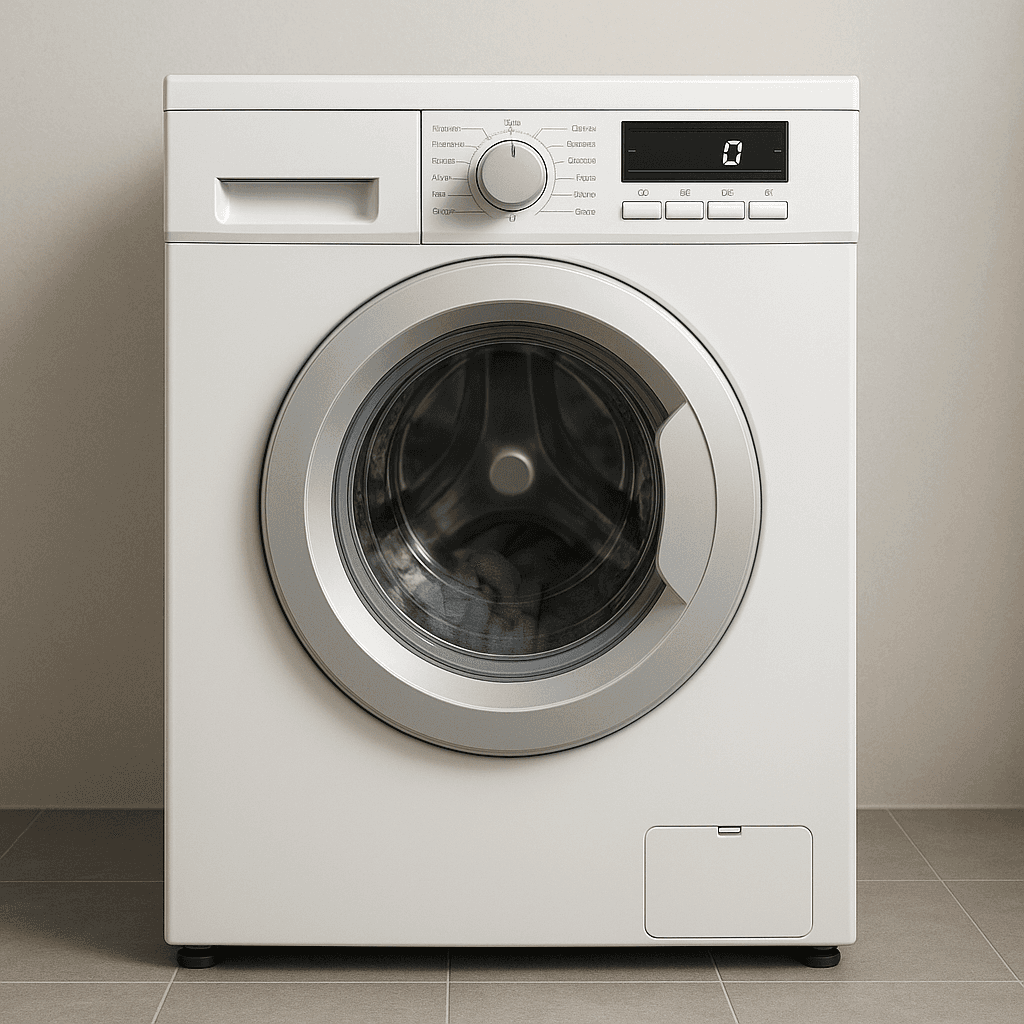
Laundry Done Alert
Receive a notification when your washing machine has finished.
Beat the Heat
Automatically close your blinds on hot days.
Wake-Up Light
Use any Apple Home Lamp as a Wake-Up Light.
Irrigation Schedule
Keep your garden green.
Control Lights with Multiple Motion Sensors
For large or irregularly shaped spaces.
Stepwise Brightness Control via Button
Control light brightness step by step.
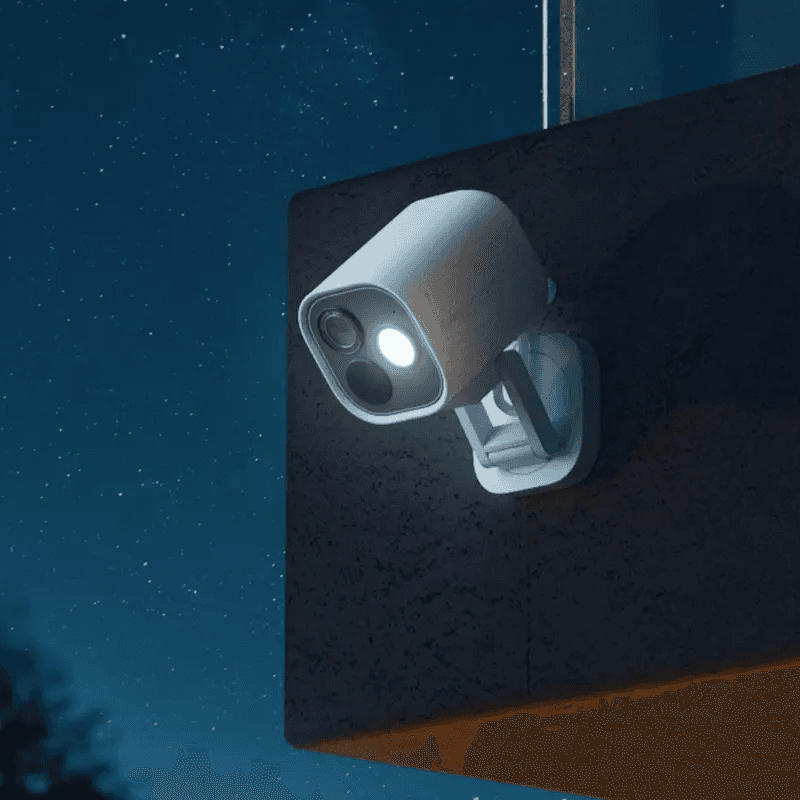
Custom Notification with Live Camera Feed
Open the camera stream instantly.
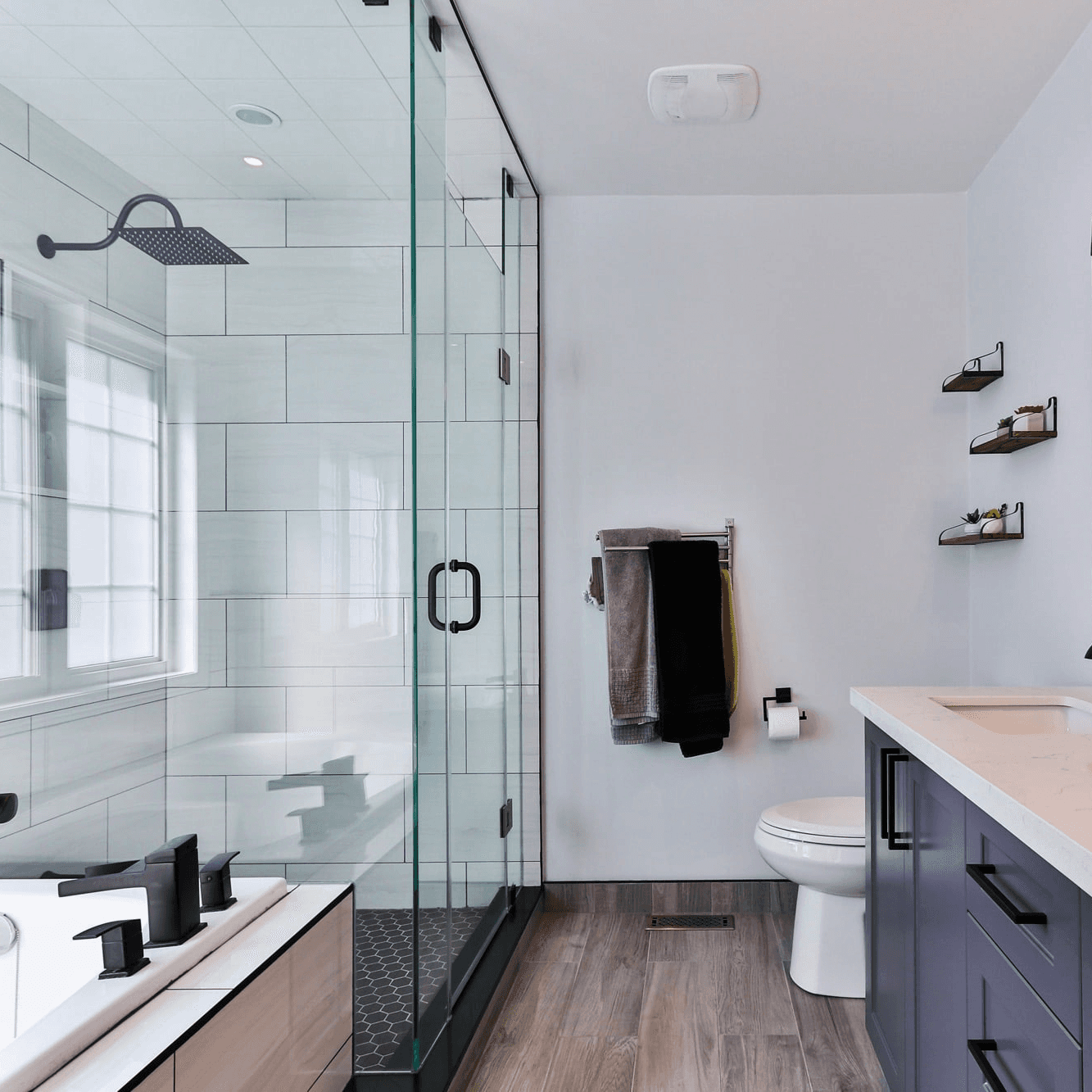
Smart Bathroom Fan Control
Make your fan truly intelligent.
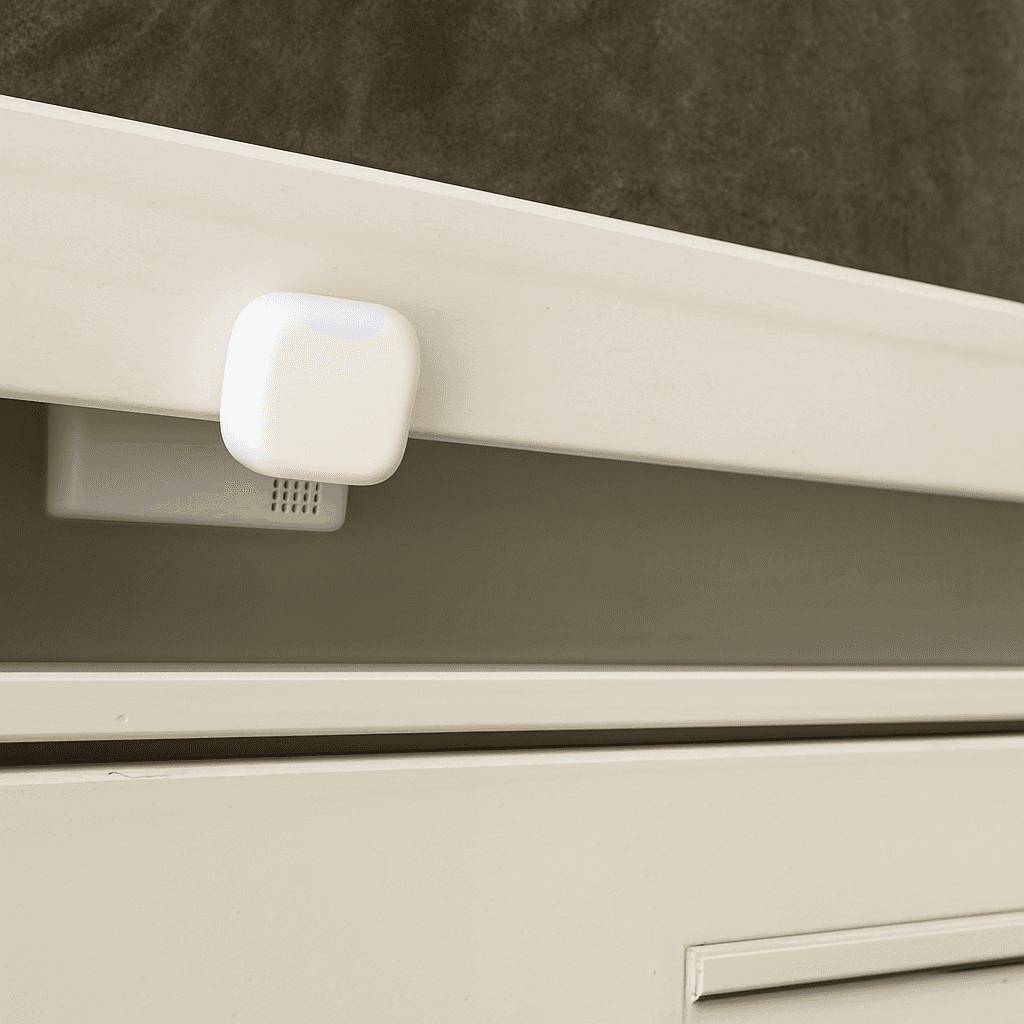
New Mail Notification
Get notified when new mail arrives.
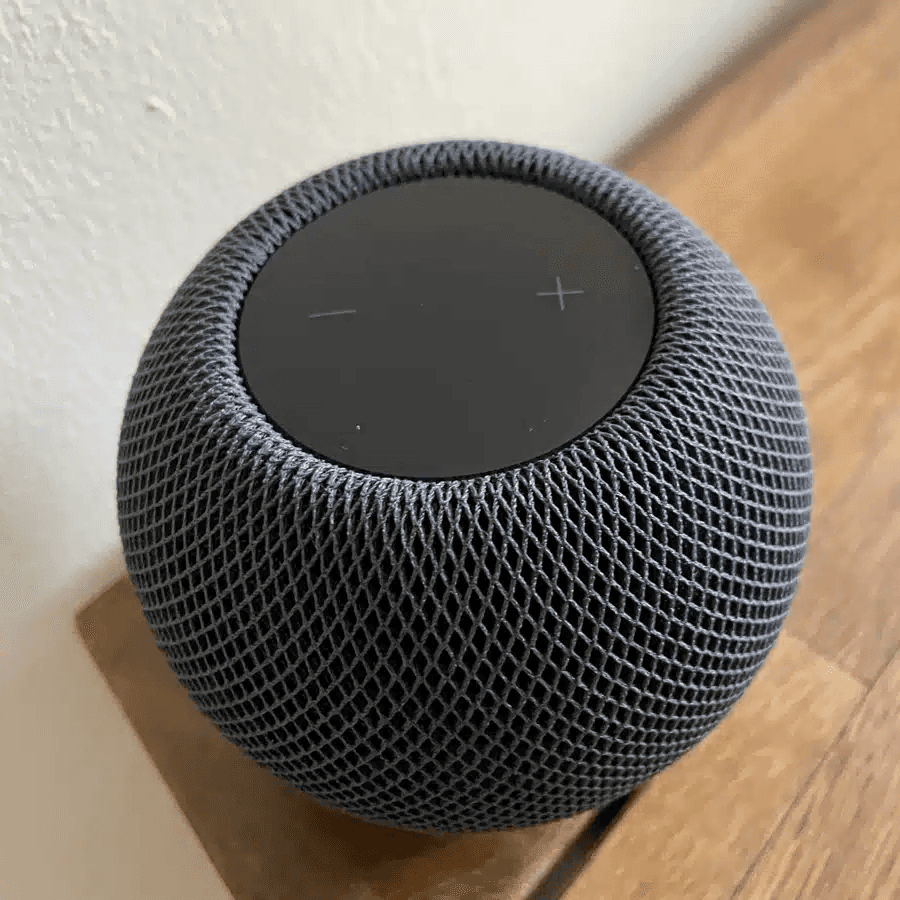
Integrate Speakers into Workflows
Control volume, play music, or pause playback.
Battery Warning
Get battery alerts when they matter.
Sleep Timer
Use a sleep timer with Apple Home.

Execute Workflow Only Once a Day
Ensures the workflow runs only once.
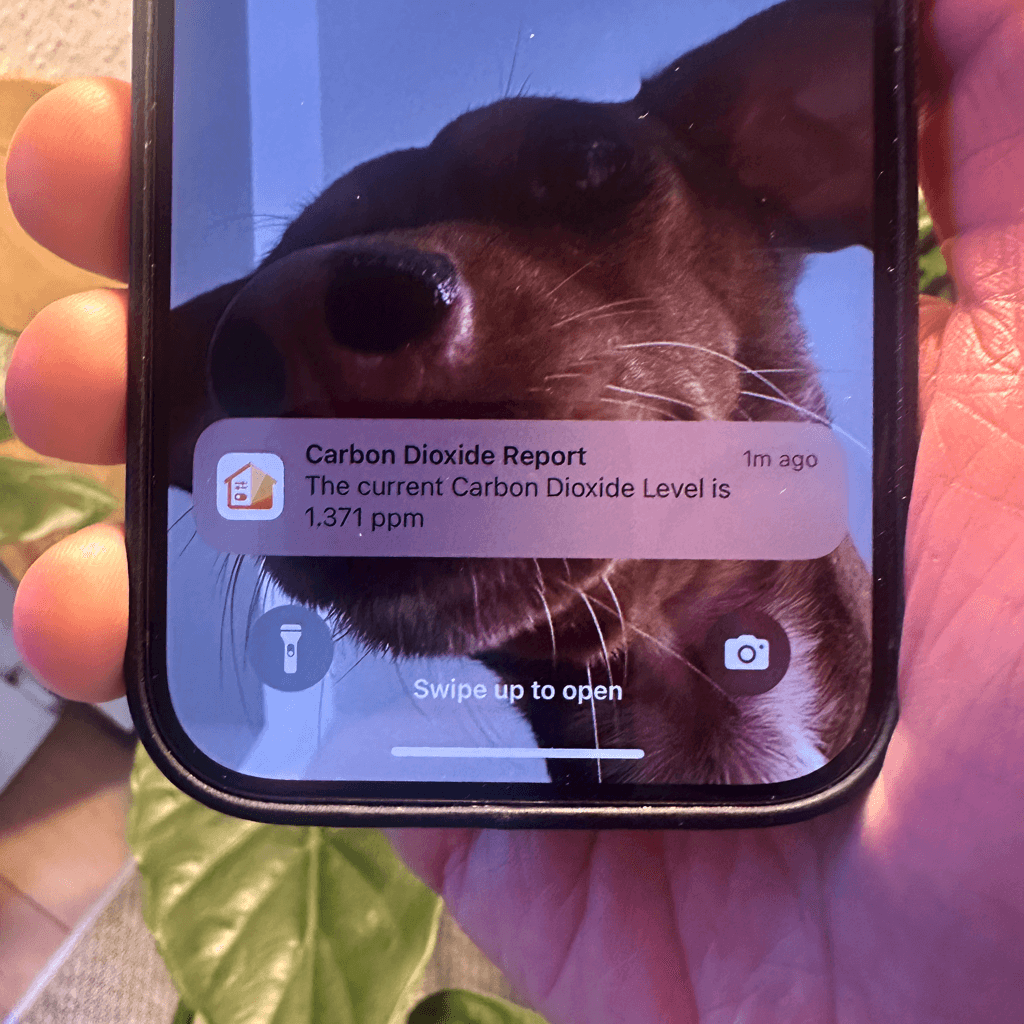
Accessory Values in Notifications
Send notifications featuring real-time accessory values.
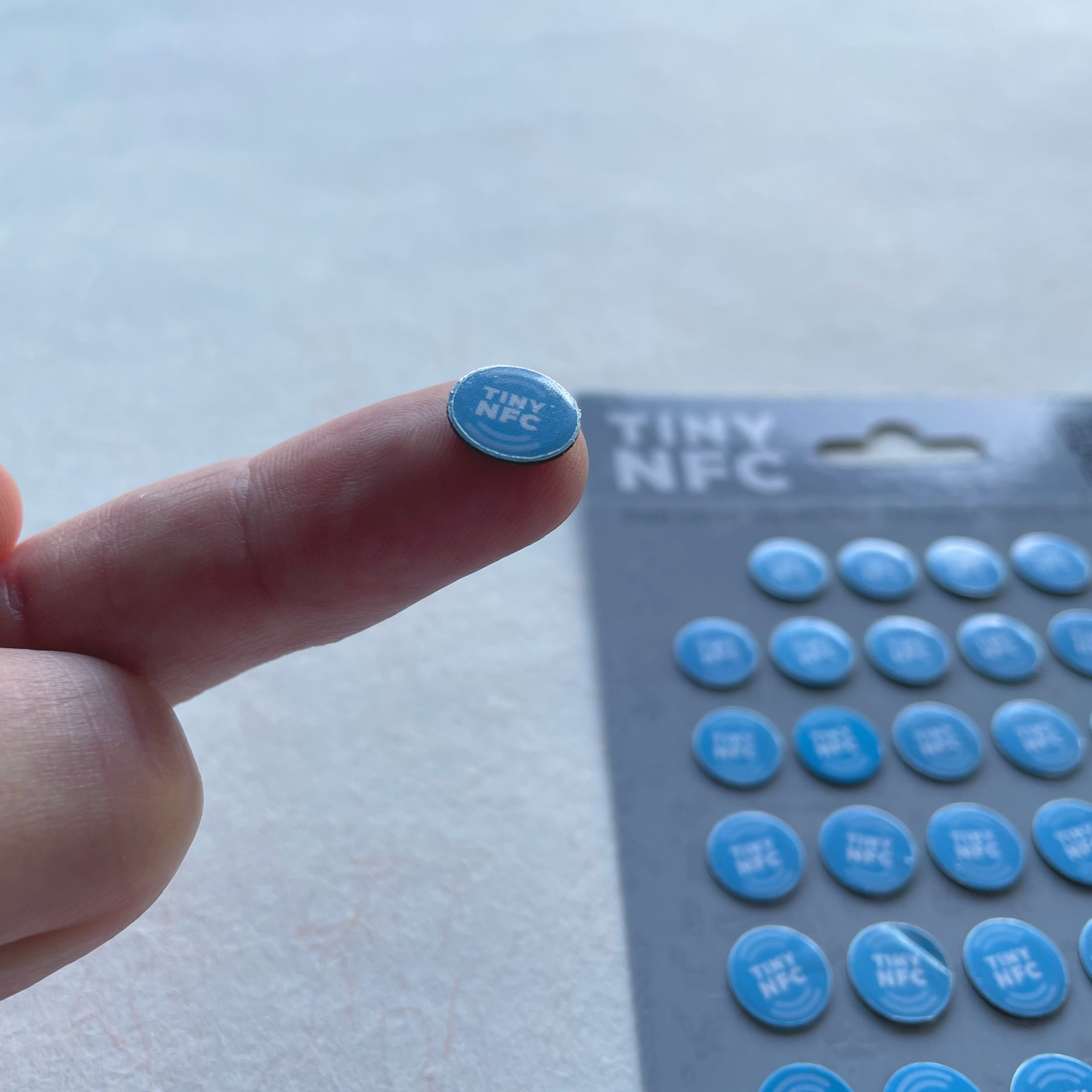
NFC Tags
Automate Apple Home Accessories with NFC.
Blink Lights
Make a light blink and effortlessly return it to its original state.
Display Camera When Motion Is Detected
Automatically display the camera livestream whenever motion is detected.
Open Window Reminder
Get a reminder if you forget to close a window after ventilating.
Toggle Lamp
Easily toggle a lamp using a single switch.
Turn Light Off Using Motion Sensor
Efficiently control your lighting with a motion sensor.